Tutorials
Line Follower Robot: Track Design
To desing our own track in Webots we will start by creating a new world. In Webots go to File > New > New World File,
name the file as my_first_line_follower and check the Add rectangle arena box. You should see something like this:

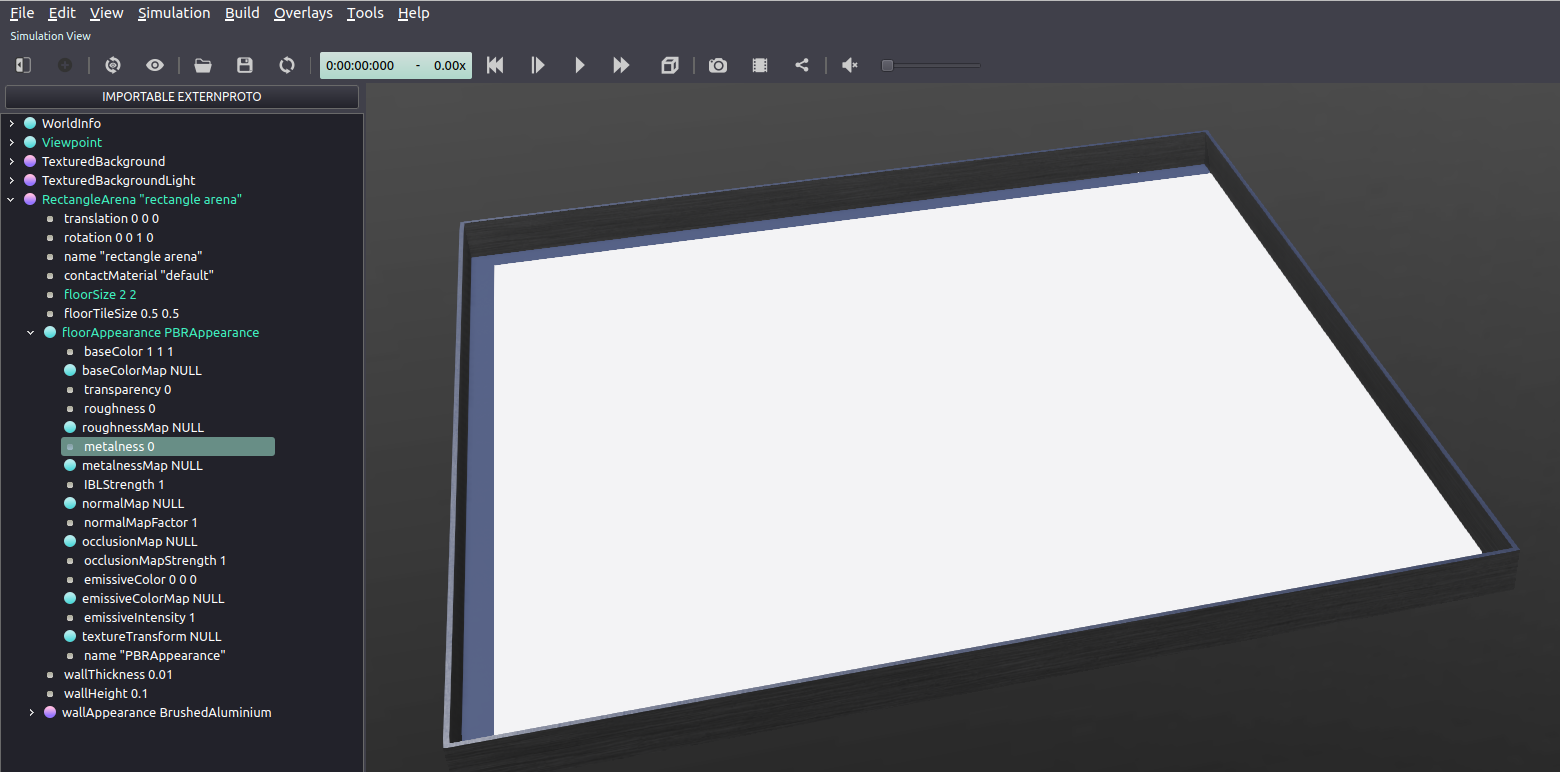
Let’s make the arena bigger and change it’s appareance. In the Scene Tree on the left, select Rectangle Arena and then click on
floorSize and set both parameters to 2 meters. Then right click on floorAppareance and select Delete. Finally, your
arena should look like this:
Now let’s design a circular track for our robot. To do this we will use TinkerCAD, an online 3D modelling program. To use this tool yo have to create an Autodesk account.
Note
If you are familiar with other 3D modelling program you can use it. Webots only requires importing the model in one of the three following formats: .dae, .stl or .obj.
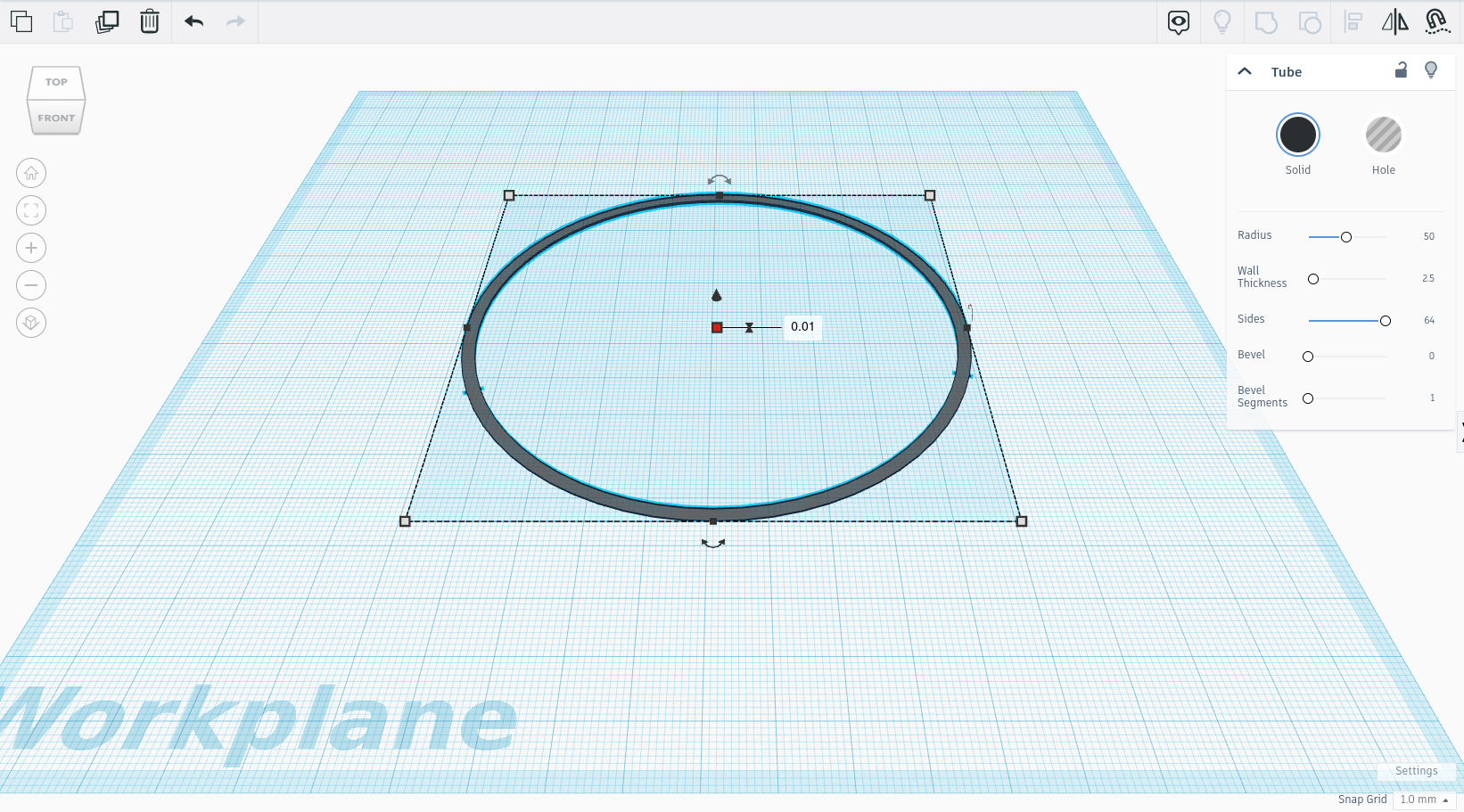
In TinkerCAD dashboard go to Designs > Create > 3D Desing. First, select the tube shape and drag it to the center of the
Workplane. You should have something like this:

Change the color to black pressing Solid, set the sides to the maximum (64), set the radius to 50 and finally set the height
to 0.01. The final result should be the following:
Click on the Export option and download the file in .obj file format. Rename the .obj file as circular_track and save it
in the protos folder of your project.
Now let’s add this new 3D model to Webots. First add a Transform node clicking on + > Base Nodes > Transform > Add and also
add a Shape node as it’s children clicking on children > Base Nodes > Shape > Add. Inside the Shape node, click
on geometry > Base Nodes > Mesh > Add, and select the path to your .obj file in url attribute. Finally set the Appareance
attribute as appareance > Base Nodes > PBRAppeareance > Add. Your Scene Tree should be like this:

As you may notice there is no track in our arena. That is because we have not rescaled our 3D object. To do this go to the Transform
node and click on the Scale attribute and set x, y and z attributes to 0,015. Thats All!

Note
You have learned how to design a specific track and to insert it in Webots. Remember that you can design your own track with a custom shape following the same steps!
Creating a very simple Line Follower Robot
Prerequisites
The following tutorial considers that you know how to build a basic Robot from scratch in Webots. If you don’t know how to do it you should check the 4-Wheeled Robot Tutorial.
2-Wheeled Robot
Let’s create a 2-Wheeled Robot to